
Before You Begin
Make sure you have:- Database hostname, port, and credentials
- Network access from AnomalyArmor to your database (see Quickstart Overview)
- A read-only database user (recommended)
Supported Databases
Step-by-Step Guide
1
Navigate to Asset Management
From the AnomalyArmor dashboard, click Settings in the left sidebar, then select the Assets tab.You’ll see the Asset Management page with a list of your existing connections (empty if this is your first time).
2
Click Add New Asset
Click the Add New Asset button. You can find this button in the top right corner of the page, or in the center of the page if you have no assets configured yet.
3
Select Database Type
Choose your database type from the available options:
- PostgreSQL - For PostgreSQL, Amazon RDS, Aurora, Supabase, etc.
- Databricks - For Databricks with Unity Catalog
- ClickHouse - For ClickHouse or ClickHouse Cloud
4
Enter Connection Details
Fill in your connection information: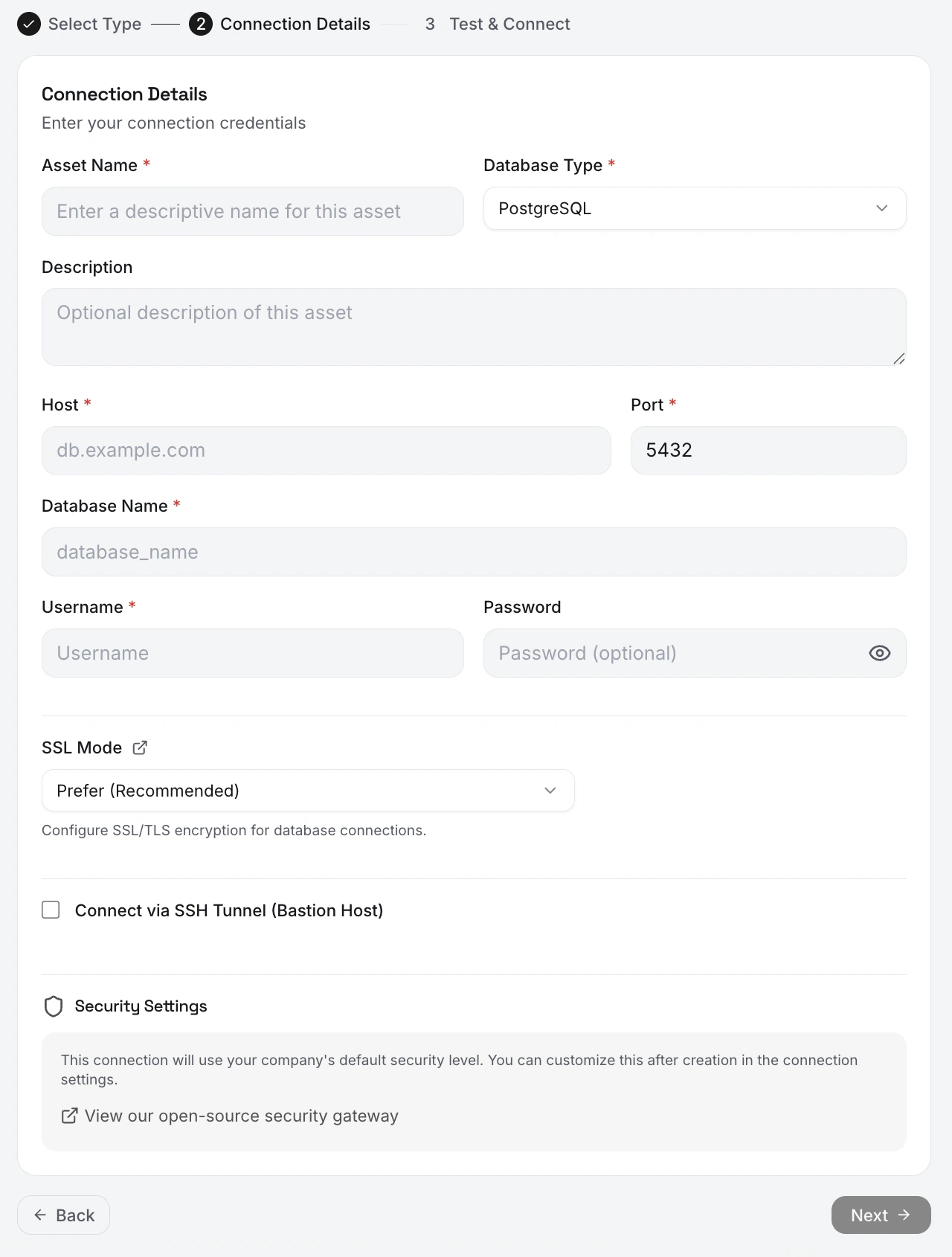
- PostgreSQL
- Databricks
- ClickHouse
5
Test Connection
Click Test Connection to verify AnomalyArmor can reach your database.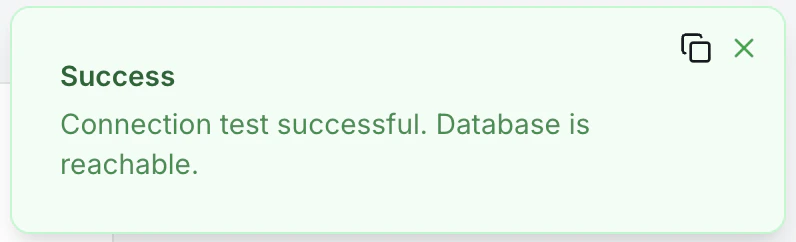
6
Save Connection
Click Save to add the connection.You should see your new asset in the Asset Management list with a “Ready” status.
What Happens Next
After saving your connection:- Credentials are encrypted: Stored securely with AES-256 encryption
- Connection is ready: You can now run discovery to scan your database
- No data accessed yet: Discovery must be triggered manually or scheduled
Security Best Practices
Creating a Read-Only User
- PostgreSQL
- ClickHouse
- Databricks
Troubleshooting
Connection refused
Connection refused
Cause: Network connectivity issuesSolutions:
- Verify the hostname and port are correct
- Check that your database is running
- Ensure AnomalyArmor IPs are allowlisted in your firewall/security group
- For RDS: Verify the security group allows inbound traffic on your DB port
Authentication failed
Authentication failed
Cause: Invalid credentialsSolutions:
- Double-check username and password (copy-paste to avoid typos)
- Verify the user exists in the database
- Ensure the user has CONNECT permission on the database
- Check for special characters in password that may need escaping
SSL connection required
SSL connection required
Cause: Database requires SSL but connection isn’t using itSolutions:
- Set SSL Mode to
requirein the connection form - For RDS: SSL is required by default, ensure SSL Mode is set
- For self-hosted: Verify SSL certificates are properly configured
Connection timeout
Connection timeout
Cause: Network latency or firewall issuesSolutions:
- Verify the database is accessible from outside your VPC
- Check for firewall rules blocking the connection
- For private databases: Contact us about VPC peering options
Permission denied
Permission denied
Cause: User lacks required permissionsSolutions:
- Grant
SELECToninformation_schematables - Grant
USAGEon the schema you want to monitor - Verify user can access the specific database
Common Questions
What database permissions does AnomalyArmor need?
Read-only:CONNECT on the database, USAGE on the schemas you want monitored, and SELECT on tables. ALTER DEFAULT PRIVILEGES is optional but recommended so new tables are picked up automatically. No write, DDL, or admin permissions are ever needed.
Can I connect AnomalyArmor to a database inside a private VPC?
Yes, via three options: IP allowlisting from AnomalyArmor’s static outbound IPs (visible in Settings → Security), VPC peering, or AWS PrivateLink. The last two require an Enterprise plan and a short setup call. See Connection Issues for diagnosing network reachability.Does AnomalyArmor support Amazon RDS, Aurora, and Supabase?
Yes. These are PostgreSQL-compatible and work with the PostgreSQL connector. RDS and Aurora require SSL; setSSL Mode to require on the connection form. Supabase requires the direct database connection string, not the pooler URL, for freshness queries to return accurate timestamps.
Why should I create a dedicated read-only user instead of reusing an existing one?
Blast radius. A dedicated user means you can audit exactly what AnomalyArmor runs, rotate credentials without breaking other systems, and apply minimal permissions. The Query Gateway already blocks writes and full-row reads, but a read-only user at the database layer is defense in depth.My connection test fails with ‘Connection refused’ - what’s wrong?
Almost always a firewall or security-group issue. Verify your database accepts inbound traffic on its port from AnomalyArmor’s static IPs (listed in Settings → Security). For RDS, check the security group inbound rules. For self-hosted databases, confirmlisten_addresses in PostgreSQL config allows external connections.
Next Step
Your database is connected! Now let’s discover your tables and schemas.Run First Discovery
Scan your database to catalog tables, views, and columns